Preferences window

Main chart tab - defines appearance of the main price chart
- fat line chart switch (if checked price chart is drawn bold)
- mark quotations - if checked each quote on line chart is marked with small
dot
- logarithmic scale on/off switch
- default style (AUTO- uses candlesticks when continuous quotations
are ON (see Information window), or always
Line, Candles or Bars)
- Color up/down bars (for traditional bars and candlestick, to define colors
use "Color" tab)
- turn on/off short time moving average overlay chart
- turn on/off mid time moving average overlay chart
- turn on/off long time moving average overlay chart
- turn on/off Bollinger bands overlay (Ranges of moving averages and width
of Bollinger bands are also definable).
- the type of turnover/volume chart overlay (to switch OFF volume
overlay select : Volume bar chart type to "NONE" )
-
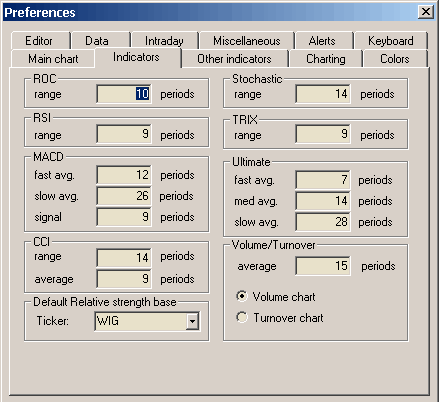
Indicators tab - defines parameters for built-in indicators
- ROC range
- RSI range
- MACD fast and slow average range, signal average range
- Stochastic Slow range
- Ultimate - fast, medium and slow average range
- TRIX averaging range
- CCI range
- Turnover value/volume switch
- Turnover moving average range
- Relative Strength comparison base (reference symbol)
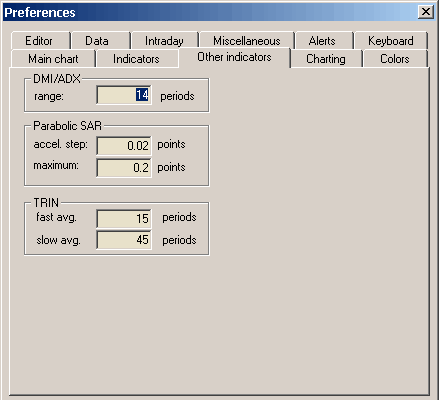
Other indicators - defines parameters for other built-in indicators
- ADX, +DI, -DI range
- Parabolic Stop-And-Reverse: acceleration step and maximum acceleration
- TRIN : fast and slow average for TRIN averages
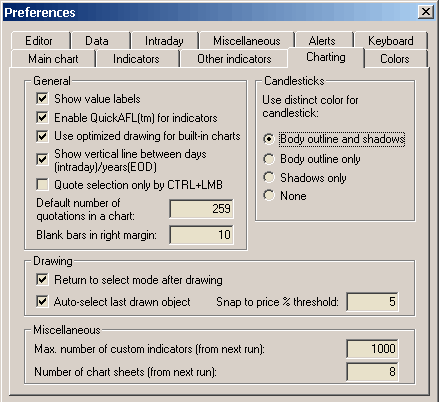
Charting tab - allows you to modify charting options
- Default number of quotations in a chart - this sets the amount of
bars initially displayed in the chart. (in other words it defines "normal"
zoom range)
- Blank bars in right margin - defines how many blank bars are added in the
right margin (past the last available quote). This blank margin allows you
to project studies (trend lines for example) into the future
- Quote selection only by CTRL+LMB - this decides how vertical selection
line is invoked. When this box is unchecked - single click on the chart causes
display of the selection line, when this box is checked you have to hold
down CTRL key while clicking to get the selection line
- Show vertical line between days (intraday)/years(EOD) - this decides
if dotted vertical line is displayed on the chart to mark day (in intraday
mode) or year (in EOD mode) boundaries
- Use optimized drawing for built-in charts - this turns on faster
algorithm for built-in charts. Recommended especially when you work with
data that have more than 10000 bars. (see also comments for QuickAFL below).
- Enable QuickAFL(tm) for indicators - this turns on QuickAFL(tm) feature
that causes faster charts redraws. QuickAFL works so it calculates only part
of the array that is currently visible. If you use this feature and your
formulas are script based you should add SetBarsRequired function
to your code. Recommended especially when you work with
data that have more than 10000 bars. Note: for certain indicators requiring
recursive calculation, enabling this feature
may lead to small (less than 0.05%) differences in values of indicators
(not visible for the eye), due to the fact that not all bars available are
included
in the calculation.
- Show value labels - this decides if value lables for indicator /
price chart lines should be displayed. See basic
charting guide for explanation
what value label is.
- Candlesticks - this setting provides detailed control over the appearance
of candlesticks. The distinct color may be used to draw part of the candlestick
or entire candle may be drawn in the same color as its interior.
- Drawing
- Return to select mode after drawing - when checked current tool
is deactivated after drawing and select mode is entered, when unchecked
currently selected drawing tool remains active after drawing (allows
to plot one study after another, note that the same effect can be achieved
even if this box is checked - it is enough to hold down SHIFT key while
drawing and the tool will remain active)
- Auto-select last drawn object - this useful feature automatically
selects recently drawn object. This allows to hit ALT+ENTER to display
properties box immediately without need to click on the study, and allows
to Copy the study via CTRL+C also without additional click
- Snap to price % threshold - defines how far price 'magnet' works,
it will snap to price when the mouse is nearer than % threshold from
H/L/C price
- Miscellaneous
- Max number of custom indicators - defines how many indicators
can be added via Add button in Indicator Builder. This should be set
to 1000 or more.
-
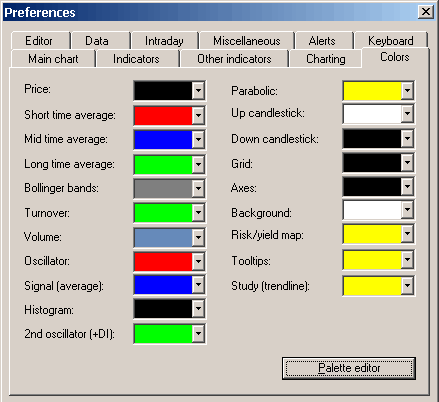
Color tab - allows to define colors for particular chart element.
The controls provide user definable color selection for charts, grid & background.
Palette editor - allows to modify custom colors that can be referenced
later via colorCustom0..colorCustom15 constants

Editor tab - controls the appearance and features of AFL
editor.
- Use syntax highlighting - when checked editor automatically colorizes
your code (different colors/styles for functions, constants, numbers, etc)
- Word wrap - when checked editor wraps the lines if they exceed the
width of the editor window
- Auto-change case - when checked the function and reserved variable
names are automatically capitalised so if you type bARSSince, editor will
change it to BarsSince
- Auto-complete - when checked you will be able to use auto-completion
feature (CTRL+SPACE will auto-complete the word)
- Parameter info - when checked the editor will display parameter
information tooltip when you type a function name and opening brace
- Font settings - allows you to define AFL editor font face and size
- Colors and styles - allows you to define what colors and styles
will be used to mark certain language elements when syntax highlighting is
ON.
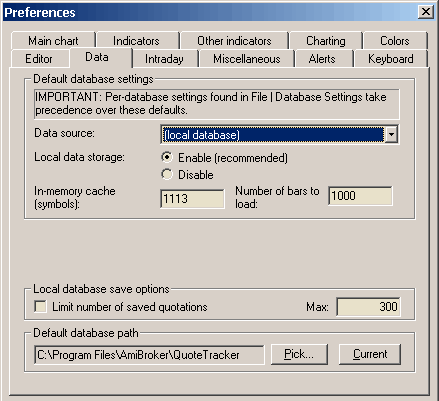
Data tab - allows you to define default, global values for all databases.
IMPORTANT: some of these settings may get overwritten by PER-DATABASE settings
in File->Database Settings window. See explanation in Tutorial:
Understanding database concepts.
- Data source: defines default data souce (for databases that do
not specify other source in File->Database Settings)
- Local data storage: default setting for external databases
(this setting gets overwritten by File->Database Settings).
If "Enabled" then external data are cached in local files. If "Disabled" then
local files do not store external data.
- In-memory cache (symbols) - defines how many symbols data should
be kept in RAM (for very fast access)
- Number of bars to load - default setting for external databases
(this setting gets overwritten by File->Database Settings). Defines how
many bars should be loaded from external data souce and kept in AmiBroker.
Examples: 10-years EOD: 2600, 60-days intraday 1-minute: 30000 (approx)
- Limit number of saved quotations - if this option is ON AmiBroker
will save database with limited number of quotations. This prevents the database
from growing too much
- Max. number of saved quotations - this is the limit itself. Preferable
300 or higher for EOD databases, 3000 or higher for intraday
- Default database path - this defines the path to the database
that is loaded on startup. If such database does not exist it will be re-created
at startup time.
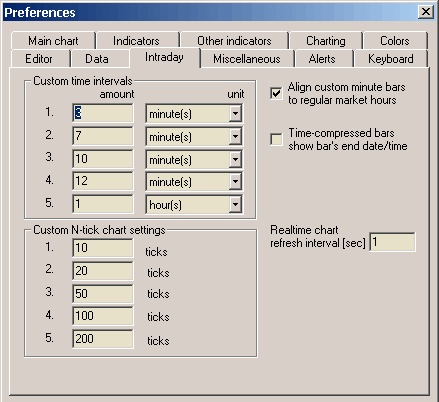
Intraday tab - provides settings for intraday charting
- Custom time intervals - allow to define your own N-minute or N-hours
intervals (available later from View->Intraday menu)
- Custom N-tick chart settings - allow to define your own N-tick charts
(available later from View->Intraday menu)
- Align custom minute bars to regular market hours - when checked
AmiBroker will trim pre-market custom interval bar so new bar will begin
exactly when trading hours start. Trading hours can be set per-database in
File->Database Settings->Intraday settings. Let's say that we have 45-minute
bars. Without this setting we would bet bars starting at 9:00, 9:45, 10:30,
11:15 etc. When this is turned on and trading starts at 9:30 we have guarantee
that bars will be aligned to 9:30: 8:45, 9:30, 10:15, 11:00
- Time compressed bars show bar's end date/time - decides if we want
bar end time displayed or bar start time displayed. Lets say that 30 minute
bar covers 9:00:00..9:29:59. When it is unchecked AmiBroker will display
time of this bar as 9:00, when checked it will display 9:29
- Realtime chart refresh interval - defines interval between automatic
chart refreshes in real-time mode. By default charts are refreshed every
3 seconds but in very volatile market you may prefer to set it to 1, so charts
are refreshed every second in real-time mode.
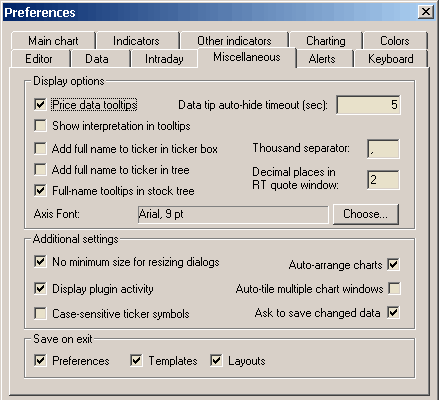
- Price data tooltips
if checked small tooltips will appear when you hover over the chart displaying
selected bar date, prices / indicator values
- Show interpretation in tooltip
if checked data tooltips will include also interpretation text that is normally
displayed in the Interpretation window.
- Data tip auto-hide timeout
defines how many seconds data tooltip should remain on the screen if you
don't move your mouse.
- Add full name to ticker in the ticker box
when checked the ticker box displays not only symbol but also full name of
the issue
- Add full name to ticker in the tree
when checked the workspace tree displays not only symbol but also full name
of the issue
- Thousand separator
defines thousand separator for number displayed on charts and all list-views.
- Decimal places in RT quote window
defines how many decimal places should be displayed in Real Time quote
window.
- Axis font
defines font face and size to be used for chart axis and text tool
- No minimum size for resizing dialogs
when checked it allows to size dialogs below the minimum size (so some
controls become invisible)
- Display plugin activity
when checked AmiBroker displays information about accessing data
plugin in the status bar
- Case sensitive ticker symbols
when checked ticker symbols are case sensitive. In other words INTC and Intc
and iNTc are considered DIFFERENT. This is required for some Canadian symbols
for example. Please use with caution. If your exchange do not use case-sensitive
tickers please make sure it is UNCHECKED.
- Auto-arrange charts
if this option is on chart windows are scaled and arranged to fit the screen
after every opening/closing chart window.
- Auto-tile multiple chart windows
when checked multiple chart windows are always tiled vertically on
every resize of the main application window.
- Ask to save changed data
when checked AmiBroker asks if you want to save modified data on exit.
When unchecked AmiBroker saves modified data without asking.
- Save on exit: Preferences, Templates, Layouts
controls which settings should be saved automatically on exit
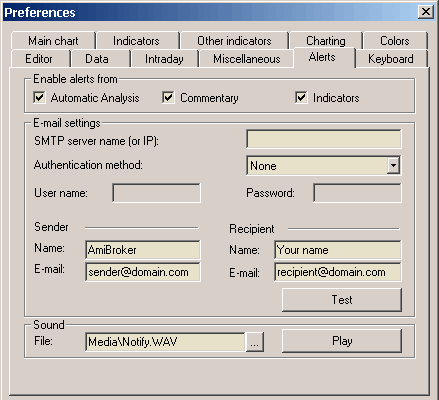
Alerts tab - It allows to define e-mail account settings, test sound
output and define
which parts of AmiBroker can generate alerts via AlertIF function.
E-mail settings page now allows to choose among most popular authorization
schemes like: AUTH LOGIN (most popular), POP3-before-SMPT (popular), CRAM-MD5,
LOGIN PLAIN.
Enable alerts from checkboxes allow you to selectively enable/disable
alerts generated by Automatic analysis, Commentary/Interpretation and custom
indicators.
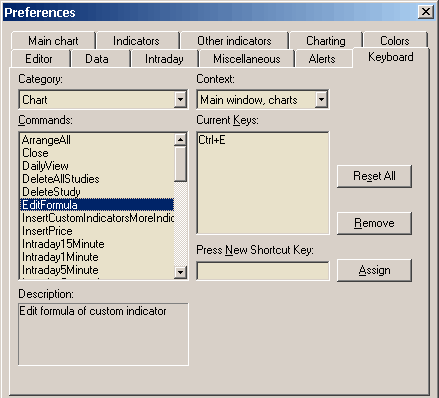
Keyboard tab
Allows you to define and/or modify keyboard shortcuts for menu items / commands.
To assign a shortcut key
On the Tools menu, click Preferences, and then click the Keyboard tab.
In the Categories list, select the menu that contains the command to which
you want to assign the shortcut key.
In the Commands list, select the command to which you want to assign the
shortcut key.
Put the cursor in the Press New Shortcut Key box, press the shortcut key or
key combination that you want, and click Assign.
If you press a key or key combination that is invalid, no key is displayed.
You cannot assign key combinations with ESC, F1, or combinations such as CTRL+ALT+DEL
that are already being used by your operating system.
If you press a key or key combination that is currently assigned to another
command, that command appears under Currently Assigned To.
To delete a shortcut key
On the Tools menu, click Preferences, and then click the Keyboard tab.
On
the Categories, and Commands lists, select the location for the shortcut
key you want to delete.
In the Current Keys list, select the shortcut key you want to delete and click
Remove.
To reset all shortcut keys to their default values
On the Tools menu, click Preferences, and then click the Keyboard tab.
Click Reset All.